Showing posts with label Windows XP. Show all posts

Wednesday, August 27, 2008

Creating Shutdown, Restart and Logoff Icons

To create the icons, create a shortcut on the desktop.

For Shutdown, the command is C:\WINDOWS\RUNDLL.EXE user.exe,exitwindows

For Restart, the command is C:\WINDOWS\RUNDLL.EXE user.exe, exit windows exec

For Logoff, the command is C:\WINDOWS\RUNDLL.EXE shell32.dll,SHExitWindowsEx 0

Increasing the Size of the Scroll Bar

How to adjust the width of the scroll bar:
  1. Right Click with Mouse on Desktop Area.
  2. Select Properties
  3. Select the Appearance tab
  4. Go to the item list and find scrollbar.
  5. Increasing the value in the Size field will increase the scrollbar width.

Unable to Create Shortcuts on the Desktop

If you can't create shortcuts on your Desktop, you might have a corrupted registry.
  1. Start Regedit
  2. Go to HKEY_CLASSES_ROOT\.lnk\ShellNew\Command
  3. Make sure it has a value of:
  4. RunDLL32 AppWiz.Cpl,NewLinkHere %1 if you don't have IE 4
  5. or RunDLL32 AppWiz.Cpl,NewLinkHere %2 if you have IE 4.0 or IE 4.01

Problem with Show Hidden Files & Folders

Fixing "Show Hidden Files & Folder" Problem
  1. Go to the following registry key: (go to Start >> Run >> type “regedit” and then press “ok”)
  2. HKEY_LOCAL_MACHINE\Software\Microsoft\Windows\CurrentVersion\Explorer\Advanced\Folder\Hidden\SHOWALL
  3. DELETE the value CheckedValue in the right window. (Its type should be REG_SZ and data should be 2.)
  4. Now create a new DWORD value called CheckedValue (same as above, except that the type is REG_DWORD).
  5. Modify the value data to 1 (0×00000001).
This should let you change the “Show Hidden Files and Folders” option now.
Be safe, be careful, use protections, ensure prevention and avoid cure hassles.

Saturday, August 16, 2008

Desktop Tab Missing from Display Properties

Display Properties is accessed by right clicking on an open area of the desktop and selecting Properties.

Fig 01
Default [Display Properties] Tab Arrangement
If the system Display Properties appears without the Desktop tab (Fig 02) it's likely due to a Group Policy Setting.

Fig 02
Modified [Display Properties] Tab Arrangement
To restore the Desktop tab:
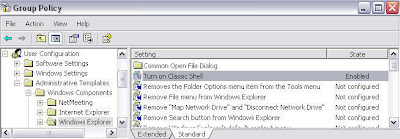
  • Open Group Policy Editor by typing "gpedit.msc" in the Open: line of Run on the Start Menu.

Fig 03
Group Policy Editor
  1. Navigate to User Configuration > Administrative Templates > Windows Components > Windows Explorer
  2. In the right pane, double click on Turn on Classic Shell
  3. Set the radio button to Not Configured then click OK

How to create CON folder?

You know that we can’t create a folder named CON, NUL, and COM1 to COM9 and LPT1 to LPT9 in Windows XP
But here is an amazing trick for creating the folders with these reserved system names.
  1. Right Click in Desktop and do create folder process. (New >> Folder)
  2. While naming the folder, type ‘CON’ and type 255 or 0160 in numpad holding the Alt button.